

5G06 Router Mesh Networking Operation
How to quickly complete wireless Mesh using the button?
1、First, confirm that the main router (5G06) is connected to the network and can access the Internet normally;
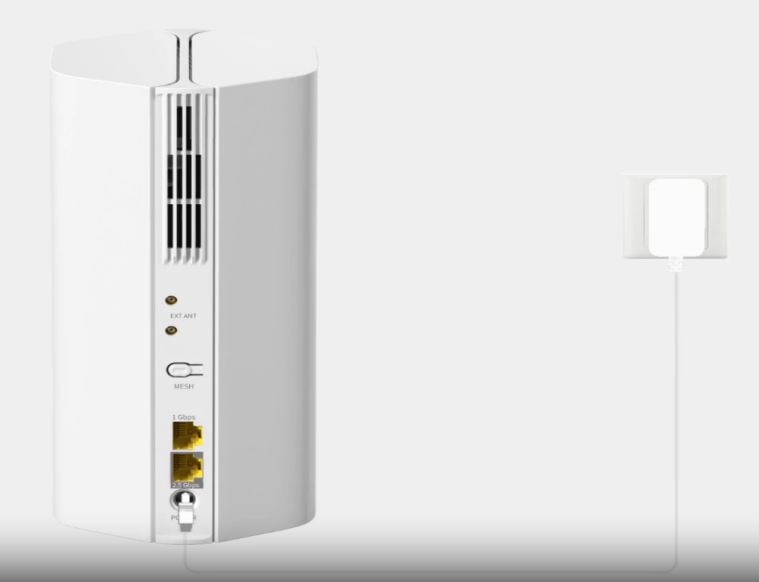
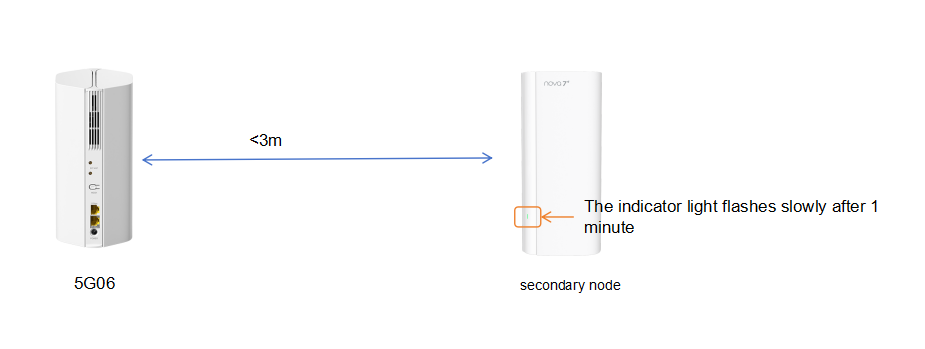
2、Place the new router (sub-node) next to the 5G06 (within 3 meters, not too far away), plug it in and turn it on; After waiting for about 1 minute for power on, the secondary node indicator light can be observed flashing slowly(indicating it is ready).
Attention: Ensure that the secondary node is in a factory reset state. If you are unsure, please restore the device to its factory state
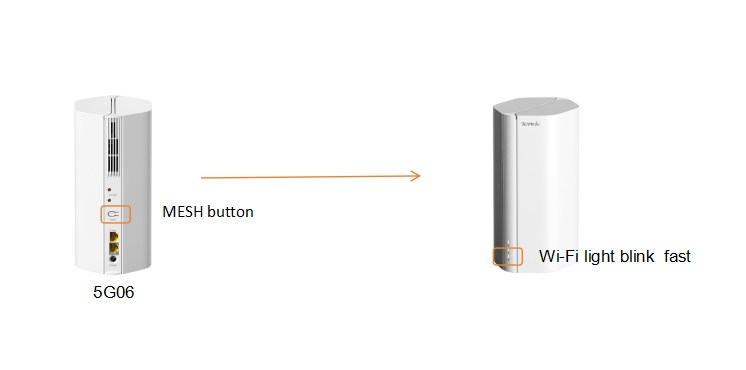
3、Press the "MESH button" of the 5G06 for 1-3 seconds. Seeing the Wi-Fi light of the 5G06 "blink fast" means half the success;
4、Quickly press the "MESH button" on it for 1-3 seconds,and the light will change to "fast blinking" after releasing (this means it is searching for the main router to pair);
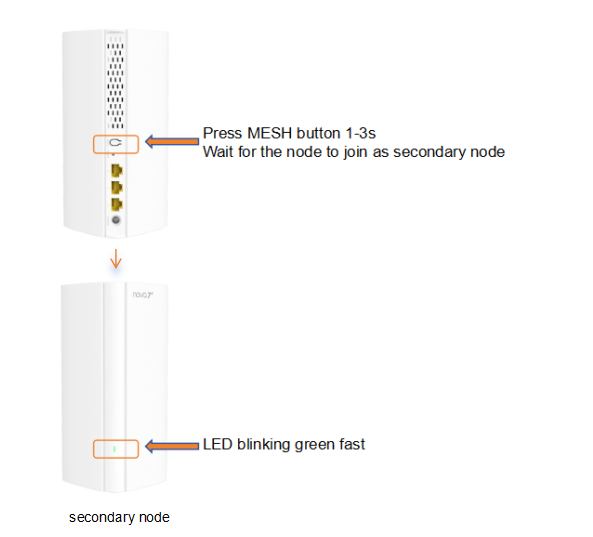
5、After waiting for about 2 minutes, the sub node's light will change from "fast flashing" to "green steady light up" - complete! At this point, the child nodes can be moved to areas with poor signal for use.
You can log in to the device configuration interface, click on MESH, and check the online status of the secondary nodes;
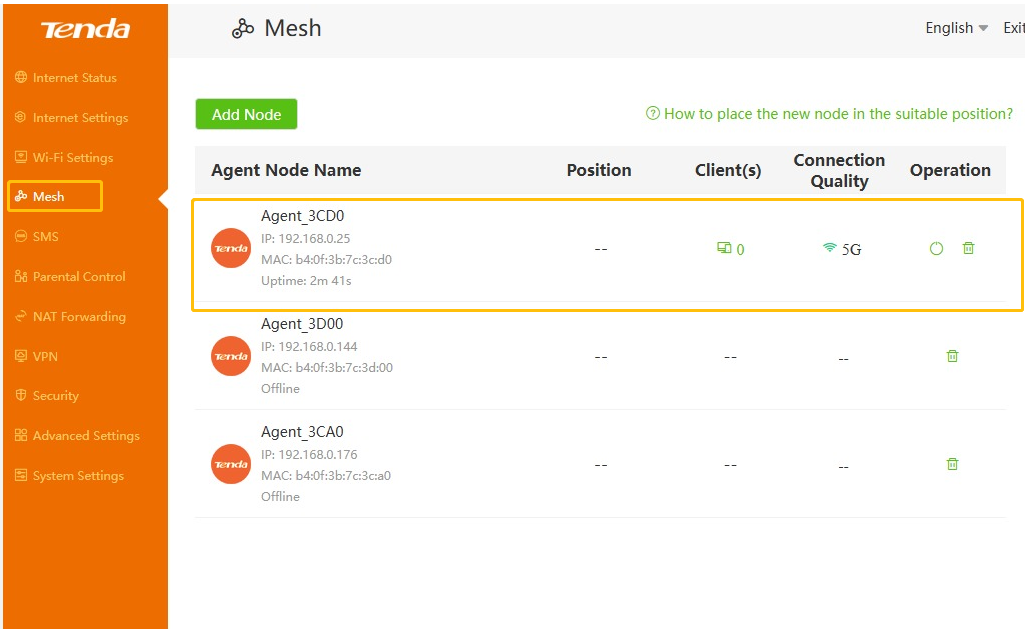
Note:
1、After the successful networking of MESH,All nodes share one Wi-Fi name and password
2、If you need to add multiple nodes, please follow the above steps to add secondary nodes one by one, and be careful not to power on multiple nodes at once.
If the pairing fails due to timeout (the light keeps blinking and doesn't stay steady), unplug the sub-node for 30 seconds, restart it, and repeat the above steps.
How to set up wired Mesh if there are network cables at home?
1、Prepare a network cable of "Category 5e or above" first (old network cables may not work; just ask the seller for a "gigabit-supported" one when purchasing);
2、Confirm that the 5G06 (main router) is connected to the network, place the new router (sub-node)in the area where you want to enhance the signal (such as the bedroom), plug it in and turn it on;
3、Wait until the sub-node's light shows "slow green blinking" (ready), then plug one end of the network cable into the port marked "1Gbps/2.5Gbps" on the 5G06, and the other end into the port of the same specification on the sub-node;
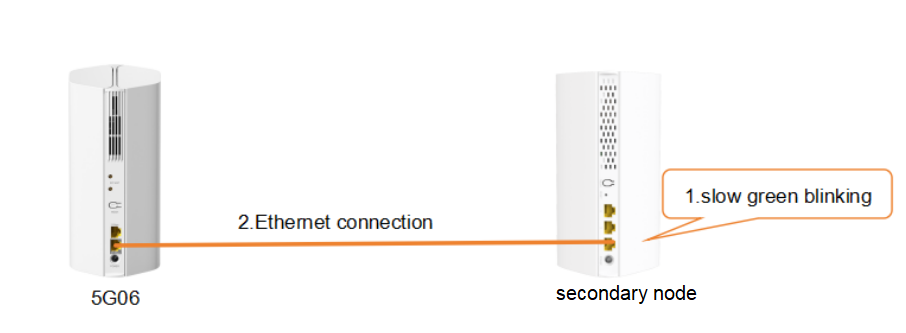
4、No need to press any buttons. Wait for about 1 minute—if the sub-node's light turns "green steady on",it means the connection is successful. If there is no response: First, unplug both ends of the network cable and reinsert them tightly, then try changing to another port; then confirm whether the sub-node's light is "slow green blinking". If not, press the "RST button" on the sub-node for 8 seconds to restore it to factory settings.
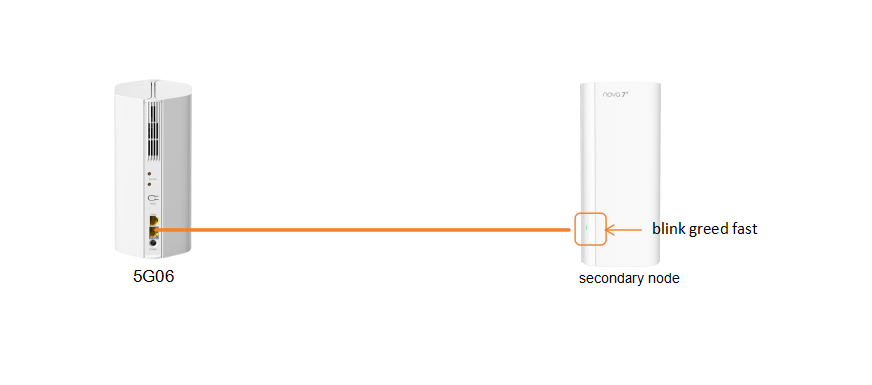
You can also view the status of secondary nodes by logging into the web interface