How to configure Failover,to make 4G/5G router to work as a router using a wired connection (via Ethernet cable, optical
How to configure Failover,to make 4G/5G router to work as a router using a wired connection (via Ethernet cable, optical
2025-10-29
383.94 KB
How to configure Failover,to make 4G/5G router to work as a router using a wired connection (via Ethernet cable, optical modem, or DSL)?
I. Preparation Before Configuration
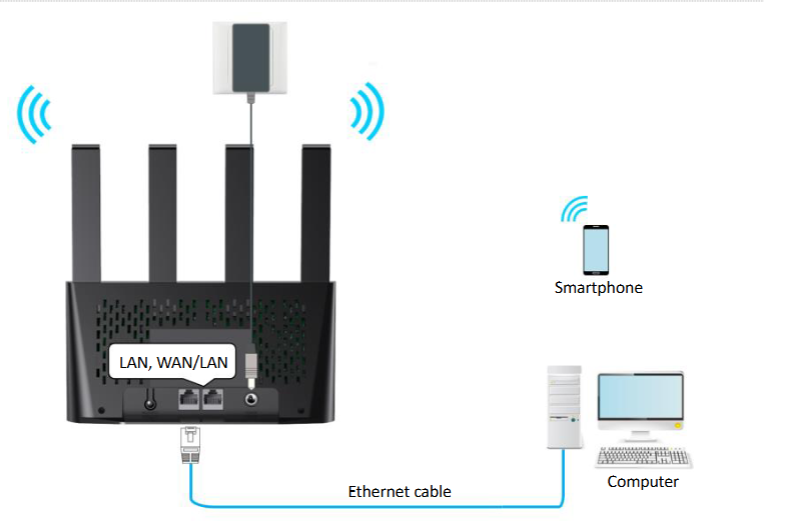
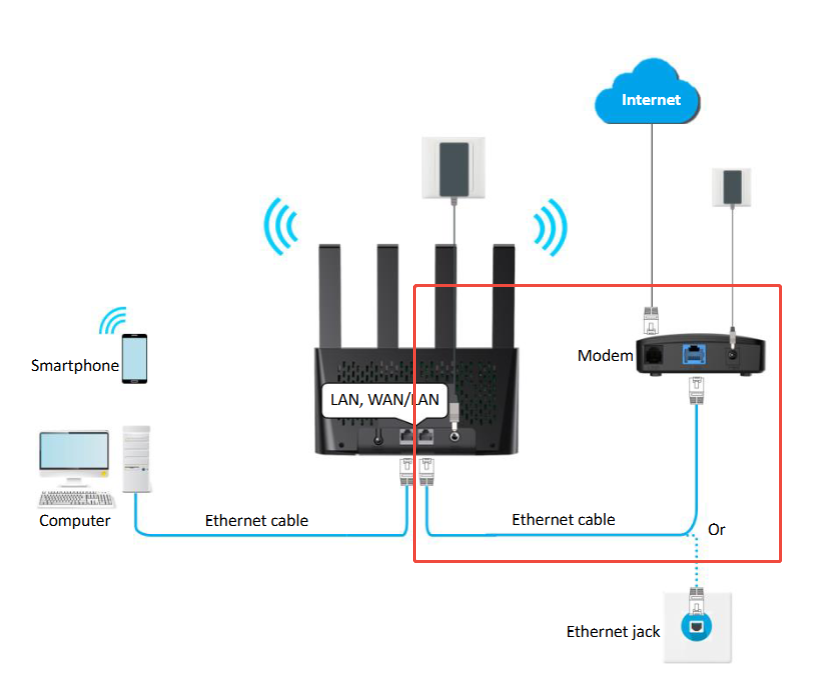
1、Hardware Connection: Connect the computer to the router's LAN port using an Ethernet cable (do not use the WAN/LAN port); or connect the device wirelessly to the Wi-Fi. Insert a working Nano SIM card into the router.Prepare another Ethernet cable for subsequently connecting the WAN/LAN port to the optical modem.
II. Log In to the Router Management Interface
1、Enter tendawifi.com (preferred) or http://192.168.0.1 in the browser's address bar and press Enter.


III. Access the Failover Configuration Page
1、Click "Internet Settings" (Internet Configuration) in the management interface.
2、Scroll down the page to find "Failover Settings" (Failover Configuration), which is disabled by default.
IV. Configure Failover Parameters
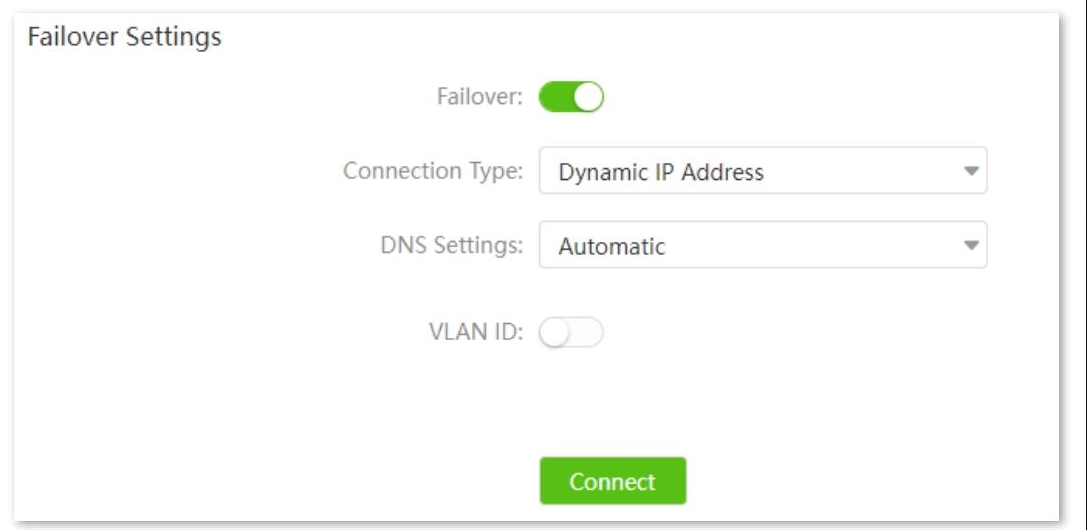
1、Enable Failover: Click the switch of "Failover Settings" to switch from "Disabled" to "Enabled".
2、Select the broadband type and fill in parameters (based on the information provided by your ISP):
PPPoE: Enter the username and password provided by the ISP. DNS is set to automatic by default; switch to "Manual" if you need to fill in DNS manually. For VLAN ID, consult the ISP and enter a number between 1 and 4094.
Dynamic IP: No need to enter a username or password. DNS is set to automatic by default. Fill in the VLAN ID if required by the ISP; leave it blank if not.
Static IP: Enter the fixed IP, subnet mask, and gateway provided by the ISP. Fill in the primary DNS (the secondary DNS is optional). The VLAN ID is filled in the same way as that for PPPoE.
3、Click "Connect" at the bottom of "Failover Settings" to save the configuration.
V. Connect the WAN Port Cable
1、Plug in the cable only after configuring the parameters! Use the prepared Ethernet cable to connect one end to the WAN/LAN port of the router and the other end to the LAN port of the optical modem, ensuring a tight connection.
VI. Check If the Configuration Takes Effect
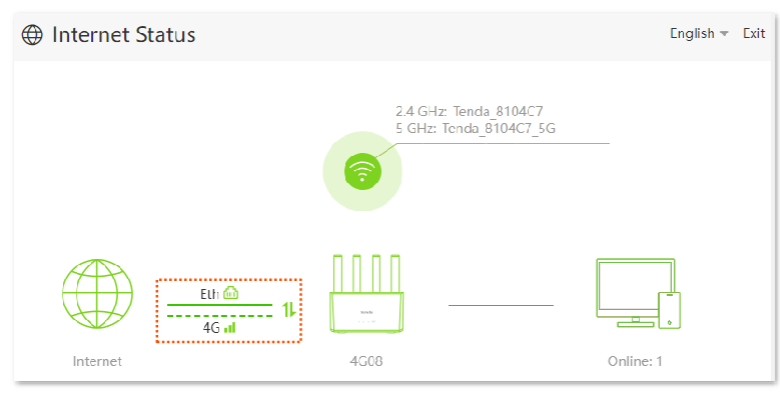
1、Return to the homepage of the management interface and click "Internet Status" (Internet Status).
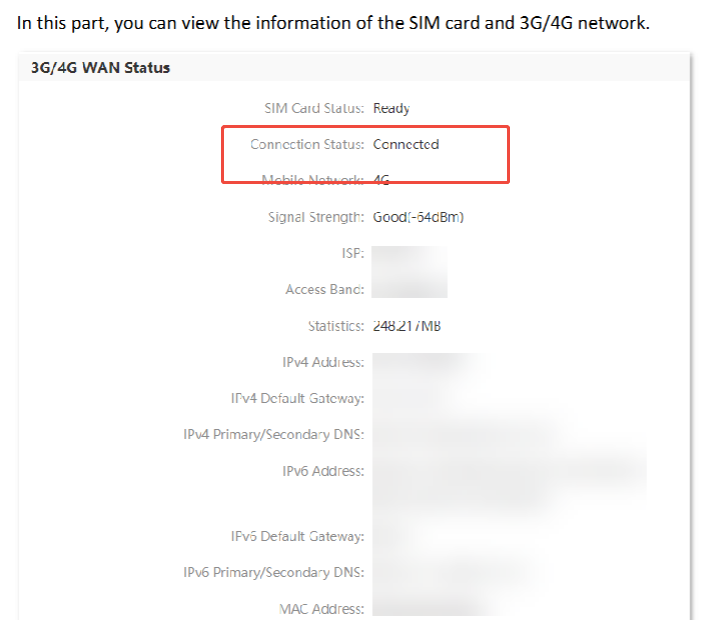
2、If you can see "Eth" (broadband) and "4G" (SIM card) without prompts like "Ethernet cable disconnected" or "No SIM card inserted", the configuration has initially taken effect.
3、Click to enter the WAN status page and confirm that the "Connection Status" of both "3G/4G WAN" and "Ethernet WAN" is "Connected"; if so, the configuration is successful.
VII. Manually Switch Between Primary and Backup Networks
1、Log in to the management interface and enter "Internet Status".
2、Click "Eth" (broadband) or "4G" (4G network) to switch networks. After switching, the page will update information such as the current network, network speed, and IP address.