

How to configure OpenVPN
How to configure OpenVPN
I. Basic Understanding
1. What is the use of the router's OpenVPN function?
OpenVPN is a free virtual private network service that allows you to remotely access your home or business network from anywhere with an internet connection. By connecting through the router, you can use devices and services within the network, such as remotely accessing a company's internal file server or a home NAS.
2. Does the router's OpenVPN only support server mode?
Yes, currently this router only supports operating as an OpenVPN server. It does not support functioning as an OpenVPN client to connect to other OpenVPN servers.
II. Configuration Preparation
1. What is needed before configuring the OpenVPN server?
Ensure the router is properly connected to the internet, either via a SIM card or through the WAN port.
Have a device (like a computer or smartphone) that can access the router's Web UI.
For remote connections, know the router's WAN IP address (a public IP is preferable). If it's a dynamic IP, it is recommended to configure DDNS in advance.
2. Is it mandatory to use a specific version of the OpenVPN client?
There is no strict requirement for a specific version, but it is recommended to download the latest stable version from the official OpenVPN website (https://openvpn.net/community-downloads/). For example, for Windows systems, choose the appropriate 64-bit, 32-bit, or ARM64 version to ensure compatibility with the router's OpenVPN server.
III. Configuration Operations
1. How to find the OpenVPN server configuration page in the router's Web UI?
Connect a device to the router (e.g., phone via Wi-Fi, computer via LAN port).
Open a browser and enter `tendawifi.com` or `192.168.0.1` to log in to the Web UI.
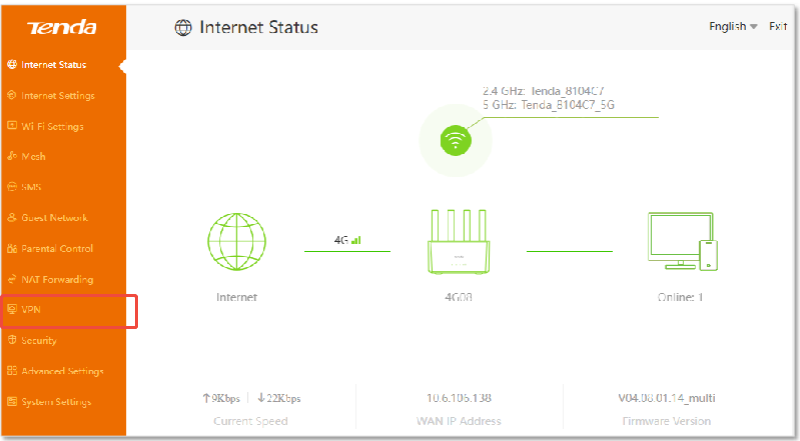
After logging in, navigate sequentially to "VPN" > "OpenVPN Server" in the navigation bar to access the configuration page.
2. How should the parameters be set when configuring the OpenVPN server?
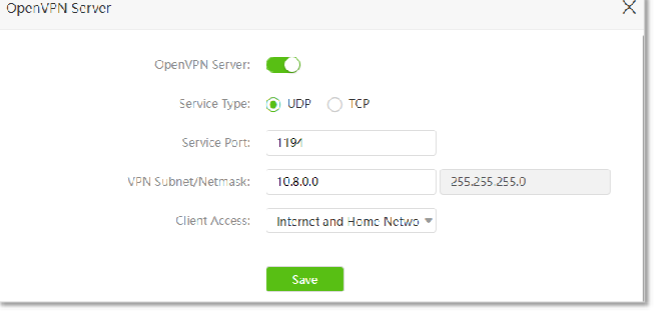
- Service Type: Options are UDP or TCP. UDP offers faster transmission speeds and is suitable for most scenarios. TCP provides higher stability and is better for poor network conditions. UDP is generally recommended.
- Service Port: Value range is 1025-65535. The default is 1194. It is recommended to use the default port or select an unused port to avoid conflicts with other services.
- VPN Subnet/Netmask: Default is 10.8.0.0/255.255.255.0. The subnet mask cannot be modified, and the subnet IP address generally does not need to be changed; keep the default.
- Client Access:
- Select "Internet and Home Network": The client can access both the home network and the internet. Suitable for scenarios requiring remote access to home devices while also needing internet access.
- Select "Home Network Only": The client can only access the home network. Suitable for scenarios prioritizing security, where only remote operation of internal home devices is needed.
3. After configuration, how to generate the certificate and export the configuration file?
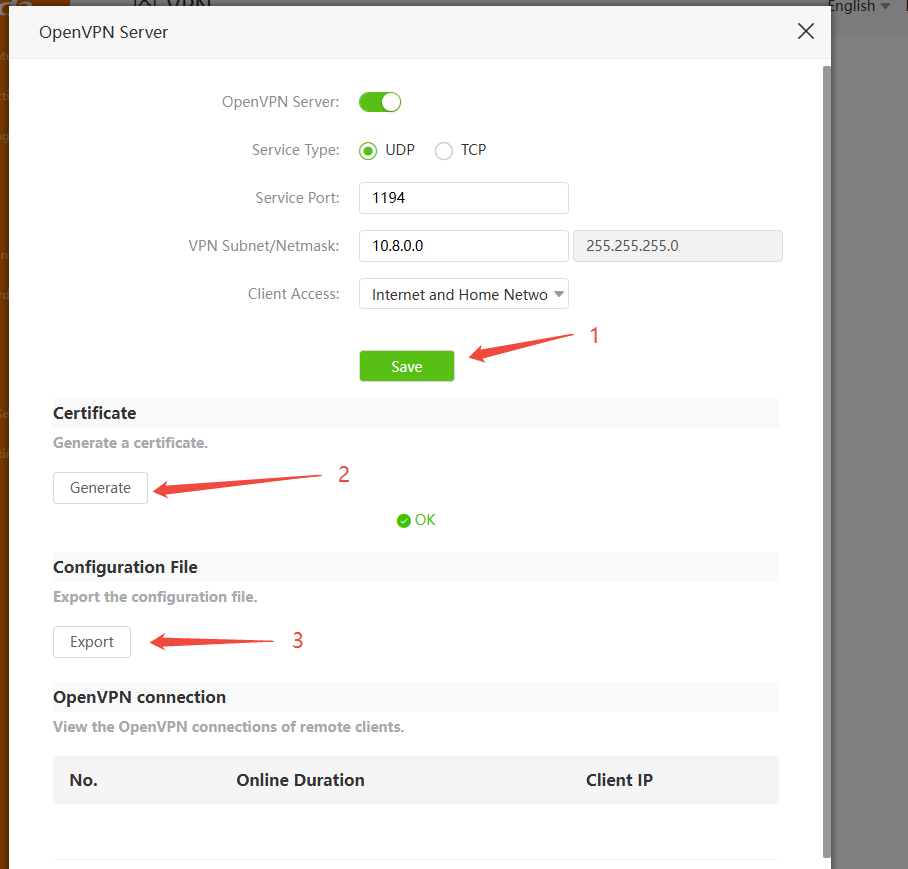
- In the "OpenVPN Server" configuration page, find the "Certificate" module and click "Generate" to create the certificate. Note: If the WAN port dial-up connection changes, the certificate needs to be regenerated as it is only valid for the current WAN IP.
- After the certificate is generated, go to the "Configuration File" module and click "Export" to download the configuration file to your local computer. This file will later need to be imported into the OpenVPN client.
4. How to install and configure the OpenVPN client on a computer to connect to the router server?
- Open a browser, visit https://openvpn.net/community-downloads/, select the OpenVPN version compatible with your computer system (e.g., Windows 64-bit), download and run the installer.
- After installation, locate the OpenVPN configuration file (the file exported from the router) in your computer's download folder. Copy this file to the "config" folder within the OpenVPN installation directory
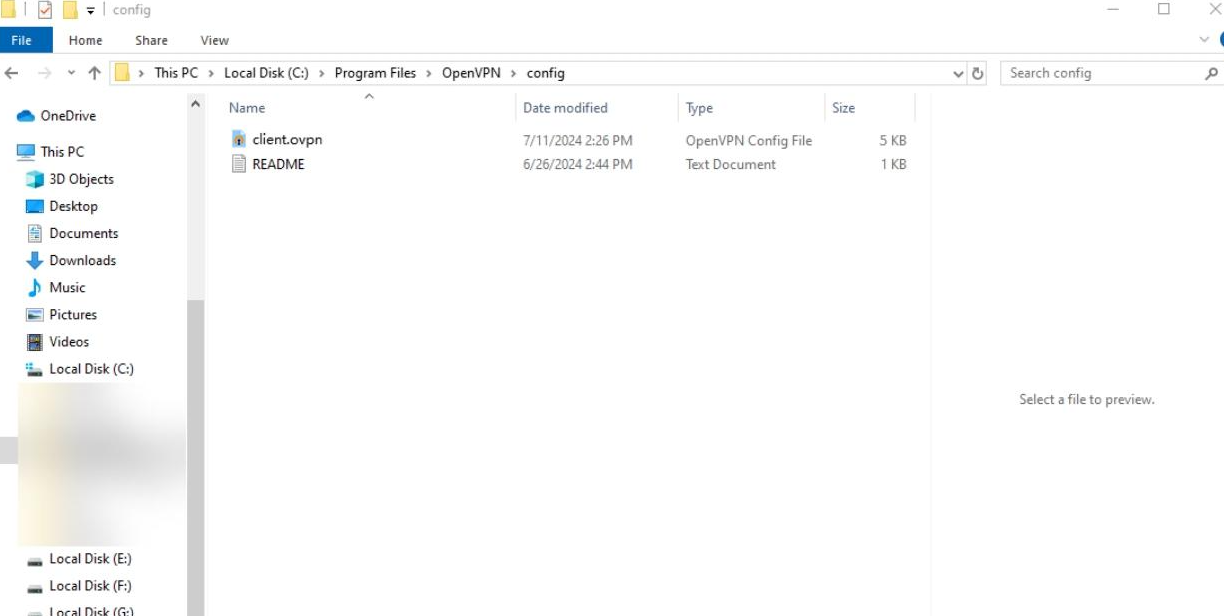
(typically `C:\Program Files\OpenVPN\config`).(Alternatively, simply open the OpenVPN client and drag the certificate directly into the software)
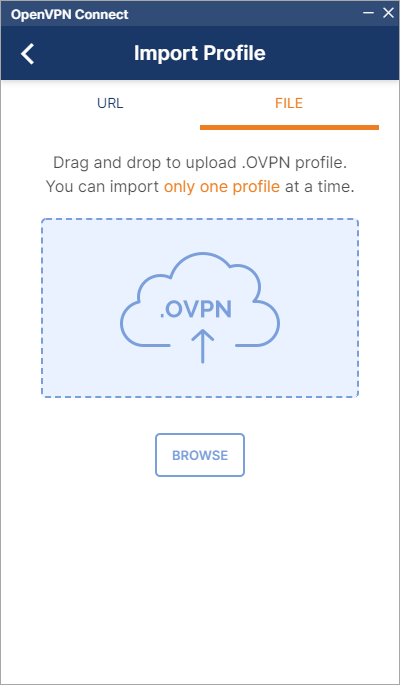
- Start the OpenVPN client. Find the OpenVPN icon in the system tray (bottom right corner of the desktop), right-click it, and select "Connect". Once the icon turns green, it indicates a successful connection.