

How to access the camera's Web Interface
How to access the camera's Web Interface
2025-07-28
Preview-Supported Models: CH7V1.1, CH9, TC series (e.g., TC3B24C).
Configuration-Supported Models: CH9, CH7V1.1, CH7V2.0, CP3 Pro, CP7V2.0, CH3V2.0, IT series (e.g., IT7-PRS).
Step 1
Use an Ethernet cable to connect your computer to the router or switch that is connected to the camera, or connect your computer to the Wi-Fi of the router (the router must be connected to the camera).
Step 2
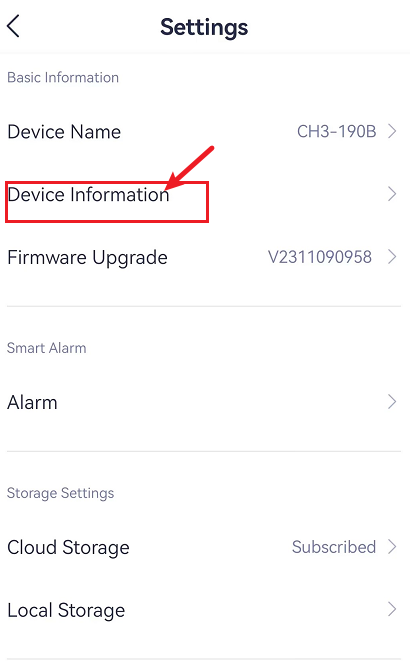
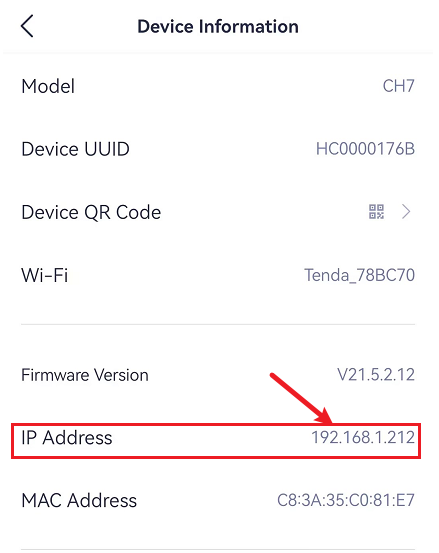
Open the Tenda Security App, navigate to the camera's page, click on the settings icon in the top right corner, go to "Device Information," and find the camera's IP Address.
Step 3
In the browser address bar, enter the camera's IP address (Chrome or Edge browsers are recommended). You will see a page prompting you to proceed; select Advanced and then click Proceed to xxx. If you can not access this page, proceed to step 5.
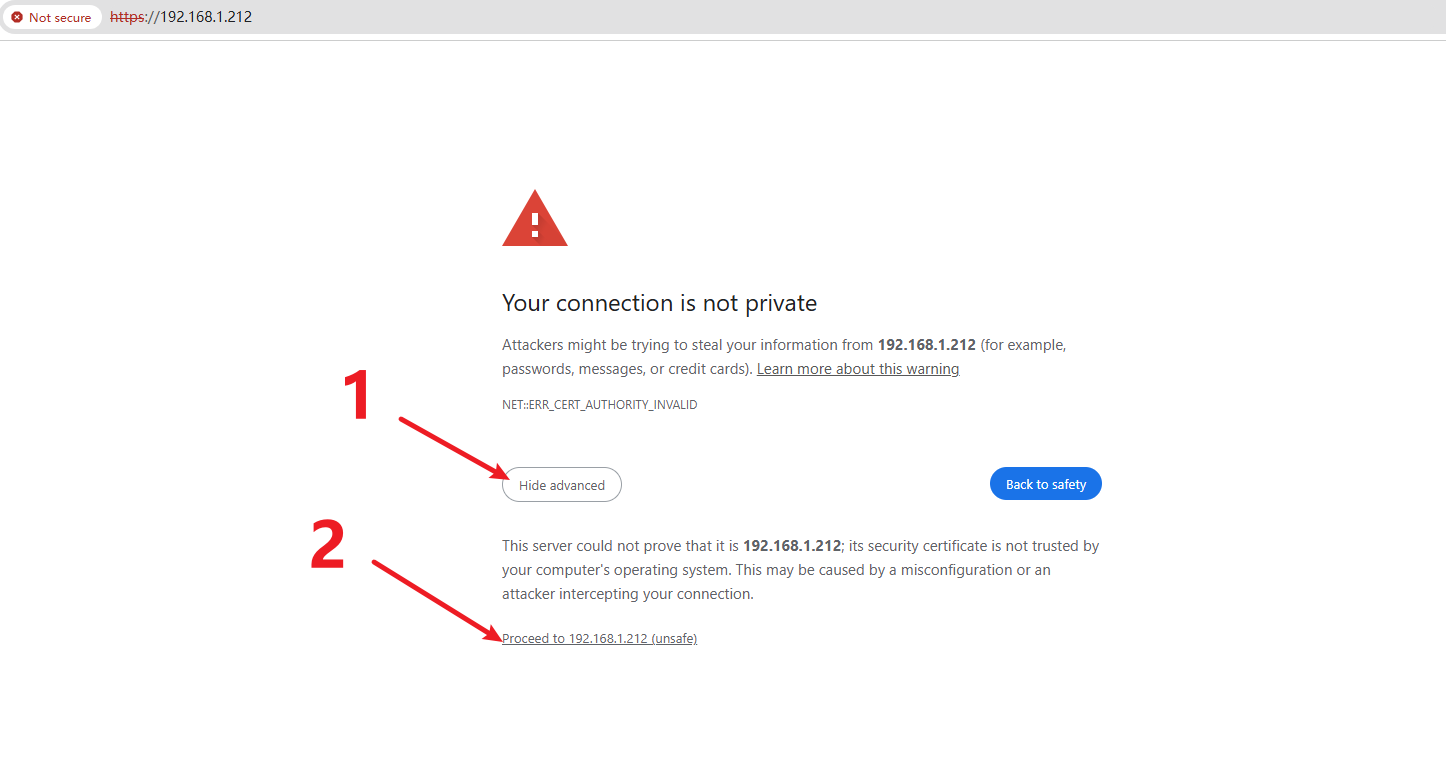
Note: The security warning occurs because the server uses a self-signed TLS certificate (not CA-issued) that becomes invalid after IP/domain changes. However, the connection remains secure via HTTPS encryption.
Step 4
Access the Tenda camera's web login page. Enter the username (default: admin) and password (default: admin123456), then click Log In.

Step 5
When accessing the camera's web UI, you may encounter the following issues:
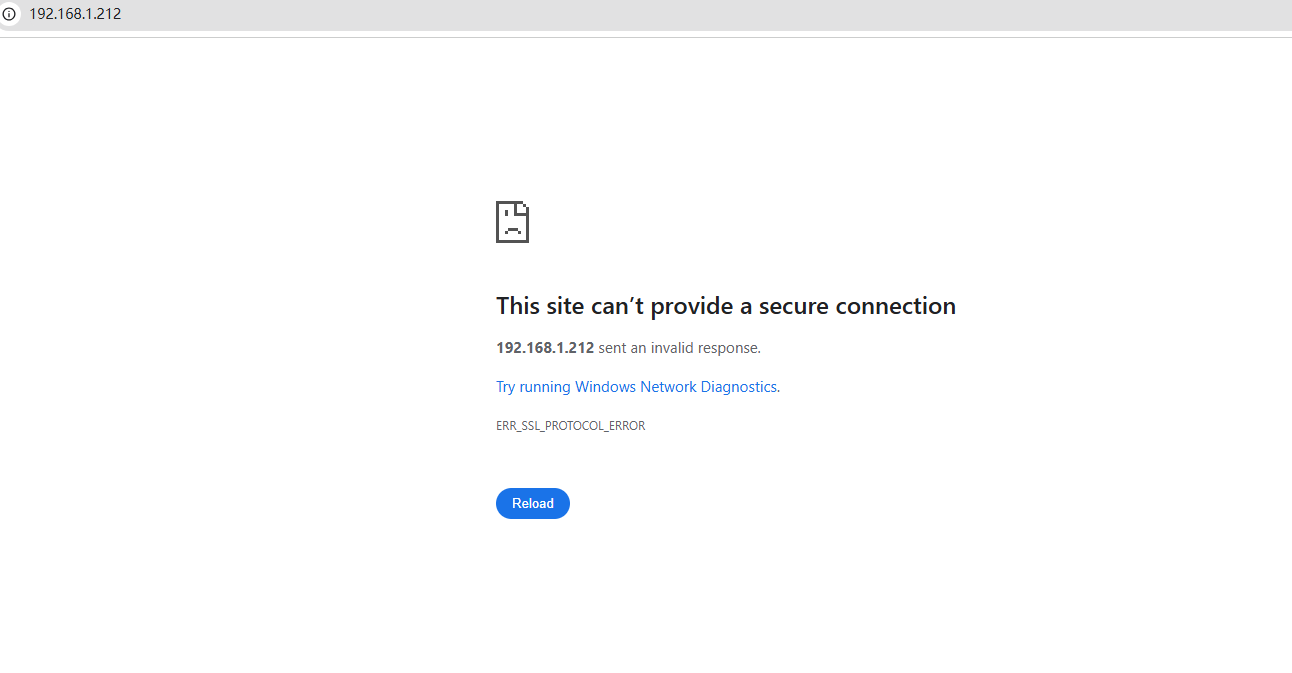
Issue 1. The webpage shows “This site can’t provide a secure connection’’
If entering the camera's IP address in the browser results in the following error page (ERR_SSL_PROTOCOL_ERROR), this is due to the browser's default use of TLS 1.3 with post-quantum key agreement for SSL encryption.
For Chrome, Edge Browser:
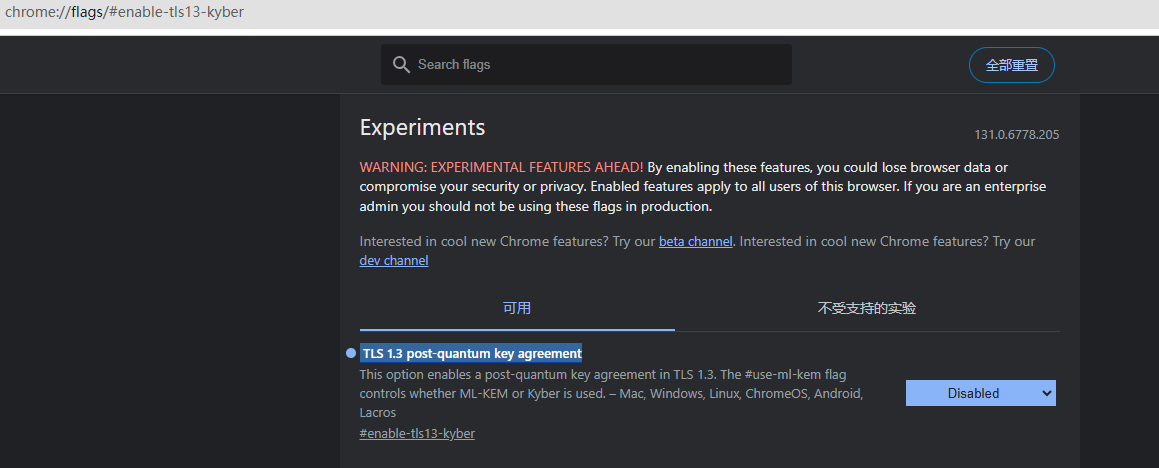
1. Enter chrome://flags or edge://flags in the address bar.
2. Search for TLS 1.3 and locate TLS 1.3 post-quantum key agreement.
3. Set it to Disabled.
4. Restart the browser.
After completing the above steps, enter the camera's IP address in the browser address bar (Chrome or Edge recommended).
On the page that appears, select Advanced and then Proceed to [xxx]. Enter the username (default: admin) and password (default: admin123456), then click Log In.
Succeed to access.
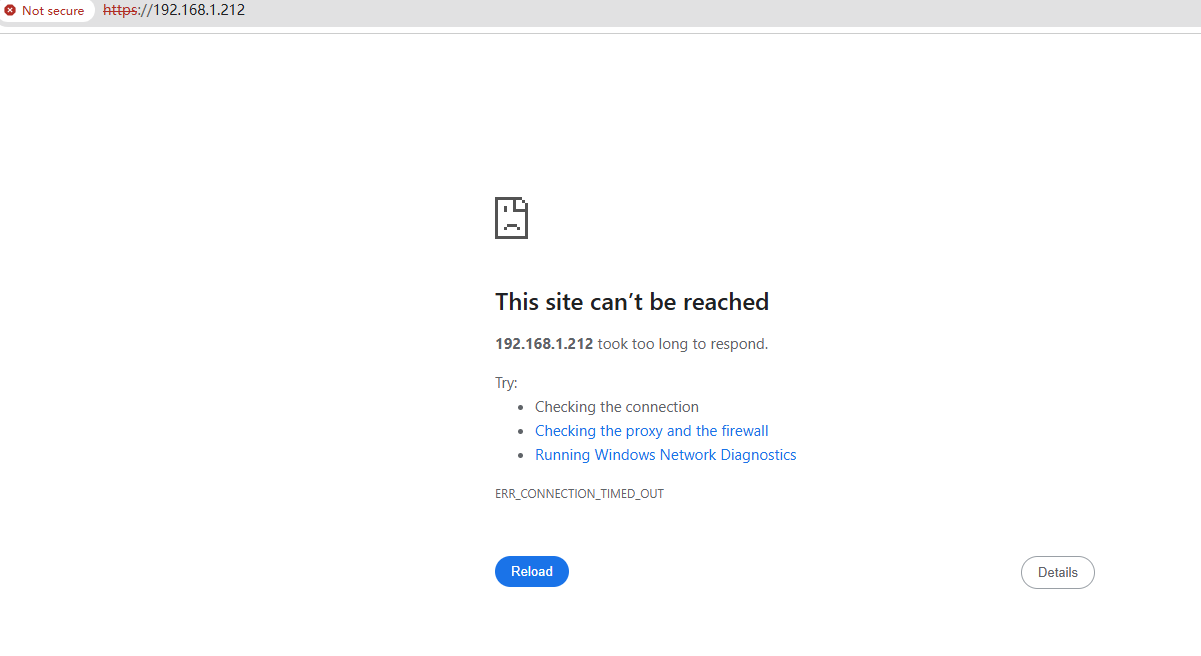
Issue 2. The webpage shows “This site can’t be reached’’
If the following page appears after outputting the camera's IP address (Error name: ERR_CONNECTION_TIMED_OUT), it means the computer and the camera are not on the same network. You need to check whether the network connections are in the same network environment.
If above steps could not solve your problem, please contact our technical support. Contact us: tendasecurity@tenda.cn