[ALL-4] How to find your Tenda router's IP address
[ALL-4] How to find your Tenda router's IP address
2025-10-10
How to find your Tenda router's IP address?
Sometimes you may fail to access http://tendawifi.com or http://192.168.0.1 to manage your Tenda Router and would like to access the Router's IP address directly as a workaround.
Normally your Tenda Router's default IP address is http://192.168.0.1 or http://192.168.1.1; Tenda's default IP address is http://192.168.0.1.
While if your network manager has changed it before, you can refer to the following methods to find your Tenda Router's IP address according to your operation system.
Windows/MacOS/Linux/iOS/Android/Chrome OS
Find your Router's IP address on Windows
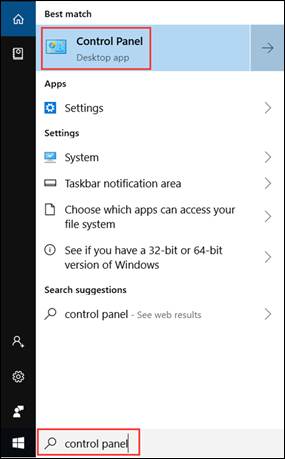
1. Open Control Panel.
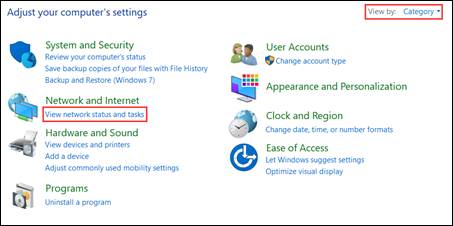
2. On the top right, choose to view by Category. Then click View network status and tasks in Network and Internet category.
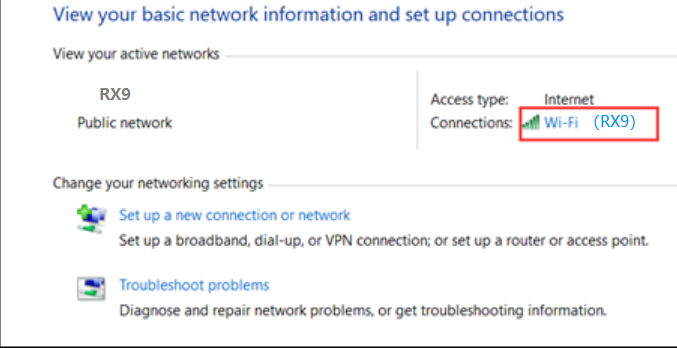
3. Click your network connections.
4. Click Details in the network status window.
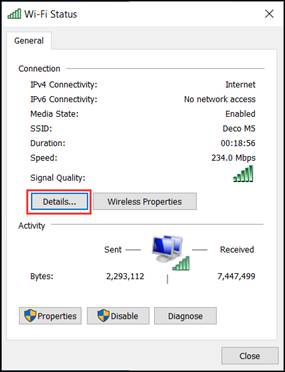
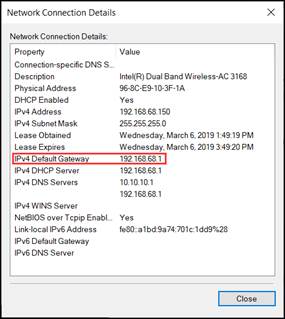
5. You can find your router's IP address show as IPv4 Default Gateway.
Find your Router's IP address on Mac OS
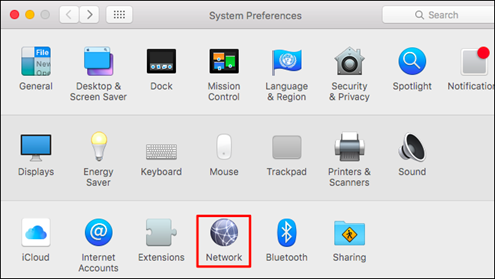
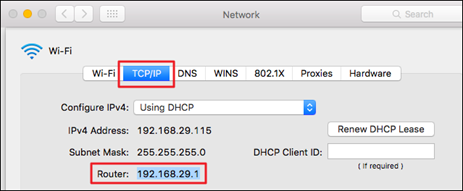
1. At the top, click Apple > System Preferences > Network.
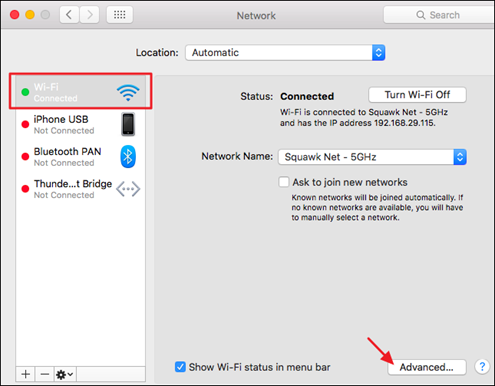
2. Click your network connection. then click Advanced at the bottom right.
3. Click TCP/IP. Then you can find your router's IP address show as Router.
Find your Router's IP address on Linux
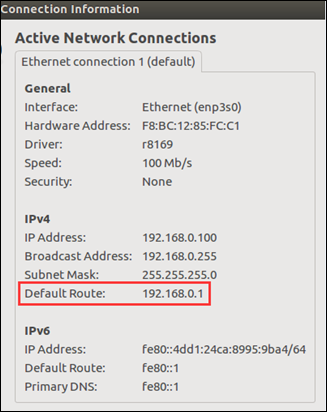
1. Click the setting icon in the taskbar.
2. Click Connection Information. Then you could find your Router's IP address show as Default Router.
Find your Router's IP address on iOS
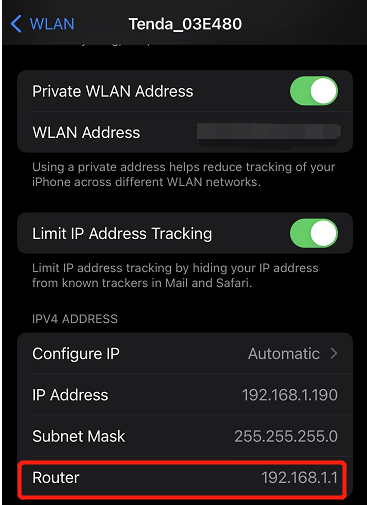
Go to Settings > WLAN. Click your Wi-Fi network. Then you can find your Router's IP address show as Router.
Find your Router's IP address on Android
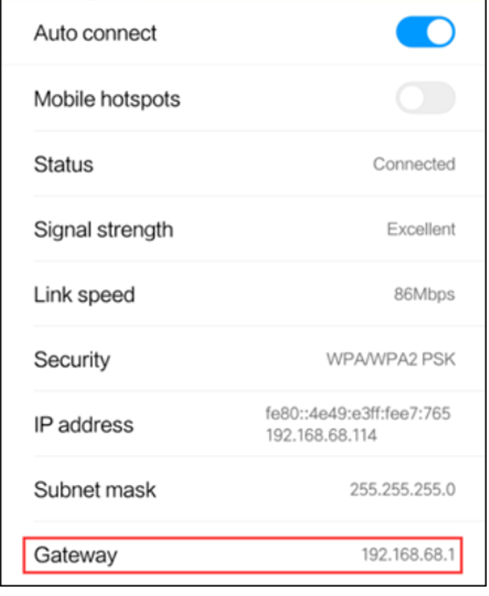
Go to Settings > WLAN. Click the details icon. Then you could find your Router's IP address show as Gateway.
Find your Router's IP address on Chrome OS
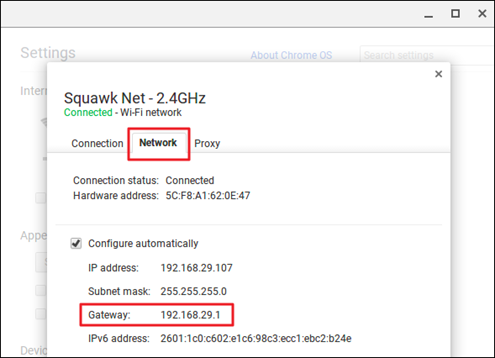
1. Click the notification area at right side of your taskbar, click Connected to. Then click your network connection.
2. Click Network. Then you can find your Router's IP address show as Gateway.