

With this function, you can map an external port to an internal port, so that applications using the internal port (such as a web server) are accessible from the internet.
To access the configuration page, log in to the web UI of the router, and choose More > Advanced > Port Mapping.
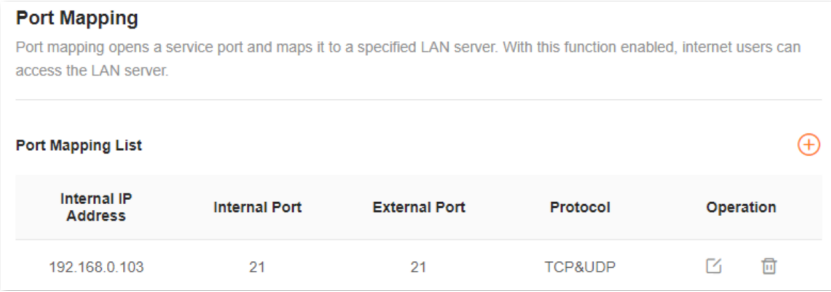
An example of configuring port mapping Scenario: You want to share some large files with your friends who are not on your LAN.
However, it is not convenient to transfer such large files across the network.
Goal: Set up your own PC as an FTP server and let your friends access these files.
Solution: You can configure the port mapping function to reach the goal.
Assume that: IP address of the FTP server: 192.168.0.100
User name and password of the FTP server: admin
Port of the FTP server: 21
IP address of the WAN port: 172.16.200.72
To achieve such a goal:
1 Log in to the web UI.
2 Choose More > Advanced > Port Mapping.
3 Click .
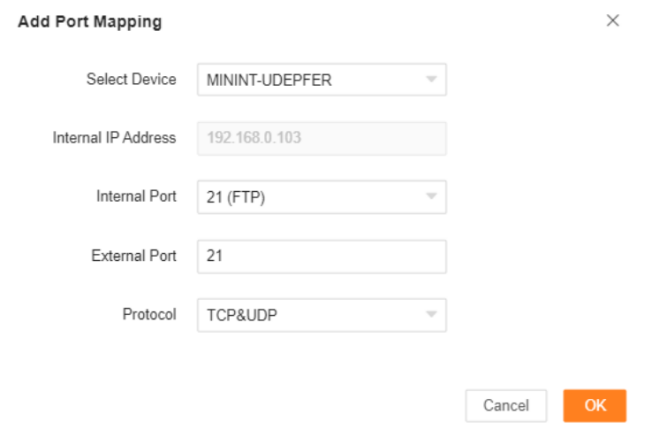
4 Select your computer for Select Device, 21 (FTP) for Internal Port, and TCP&UDP for Protocol.
TIP:
You can directly select a client from the drop-down list box, which requires no further settings on Internal IP Address. If you select Manual, you need to set Internal IP Address manually.
5 Click OK.
Now your friends can access your files by visiting ftp:// 172.16.200.72 using their computers with internet access.