How to setup the router for Dynamic IP internet connection mode
Product line: Wireless Model number:FH330
There are three internet connection modes for the router. This article will guide you how to setup the router for Dynamic IP mode and the steps as below.
Note: if you have no idea about the internet connection type and the accounts please call your ISP for then.
Part 1: Connect the devices
Part 2: Configure your computer
Part 3: Setup the router
Part 4: Check whether you can access internet

Connect the modem with the WAN port of the router, then connect your computer with one of the LAN ports of the router by a cable.
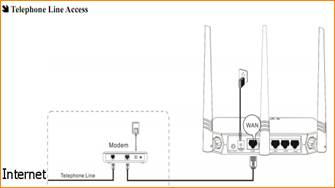
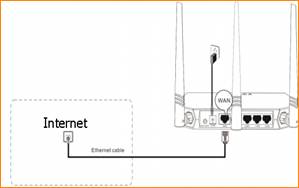
Note: after connection the SYS light should be blinking, the WLAN light should be on or blinking, the WAN light should be on or blinking.

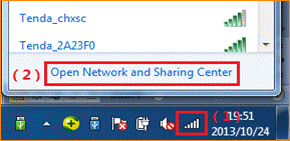
1 Click onNetwork Connection Icon on the system bar, then click on Open Network and Sharing Center.
2 Click on Change adapter settings.

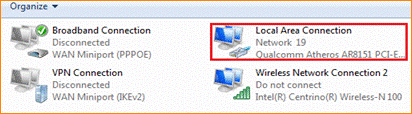
3 Right click on Local Area Connection, then choose Properties option.
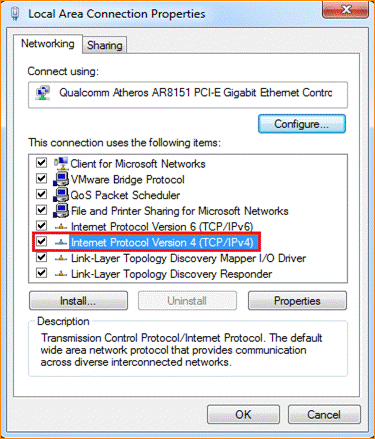
4 Double click on Internet Protocol Version 4(TCP/IPv4)
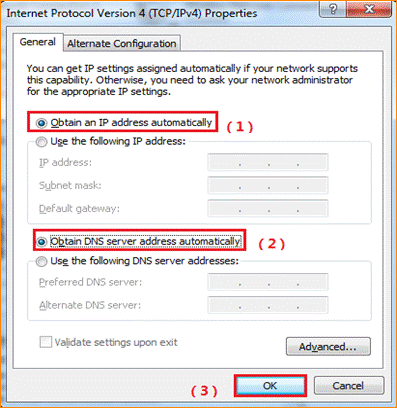
5 Choose Obtain an IP address automatically andObtain DNS server address automatically and then click OK.
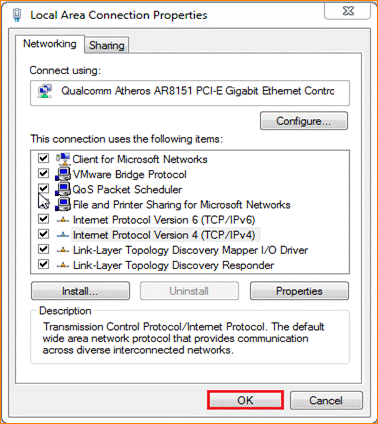
6 Also click onOK on the first Local Connection Properties window

1Open a browser then type192.168.0.1 in the Address bar, click Enter.

2 Type the Password(default: admin)in the bars then click on the Login button to login the setting page.

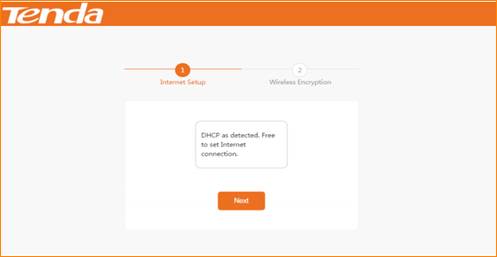
3 If the Setup Wizard detects that your Internet connection is DHCP,you will see the figure below:Just click Next to skip to next page.
4 You can secure your wireless network on this page. The default Wi-Fi Name can be seen here on the Router’s label.
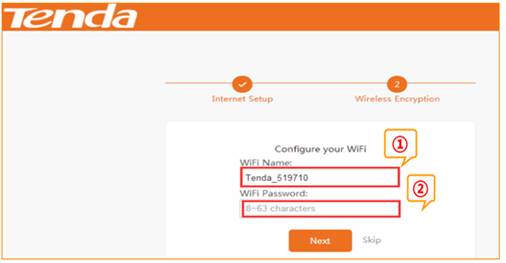
1. Change the WiFi Name to your custom name for easy recognition.
2. Customize a WiFi password in the WiFi Password field,and click Next.
5 The page below appear and hold for about three seconds,and you will be directed to the Internet Connection Setup page


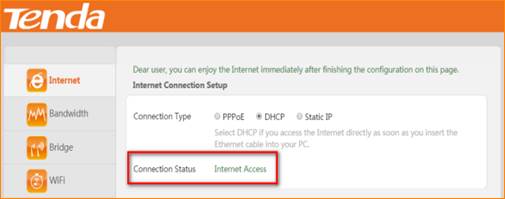
1 Check the Connection Status, if it shows Internet Access, it indicates that you can access the Internet.