

Mise à jour : 2025-06-11 Aperçu:5564 Pour :W322E v1.0、W322E 、
How to Install the Wireless Adapter
Mode number: W322E
This is a PCI wireless adapter and can only be installed in a PCI-E slot on a desktop, this
article will guide you on how to install it. Once finished, you can enjoy a high-speed Internet
connection, photos, files, music, videos. Now follow my steps.
Part 1: Hardware Install
Part 2: Driver Install

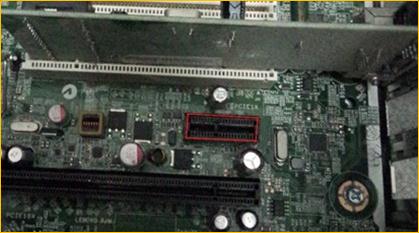
1 Turn off your computer and open the case, where I marked red is a PCI-E slot.
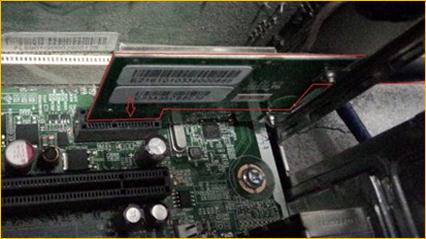
2 INSERT the NIC into the available PCI-E slot.
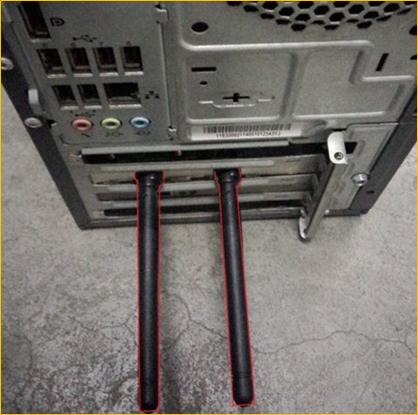
3 Fix the NIC with screws and cover the case, you will see two antennas out of Desktop PC.
4 Connect the NIC to your existing network using a Cat5 or Cat5e Ethernet cable.

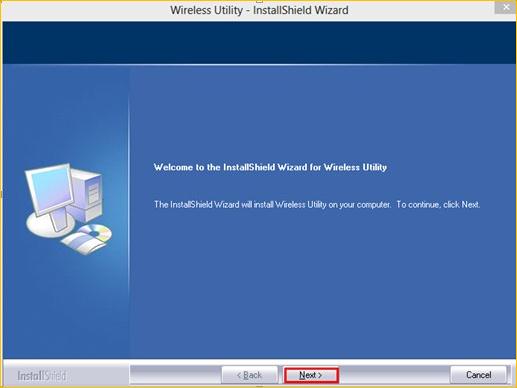
1 INSERT the Tenda Driver CD in your PC’s CD-ROM drive. Find APP -> Setup.exe, double
click it, it will pop up a Wireless Utility – InstallShield Wizard, click Next to continue.
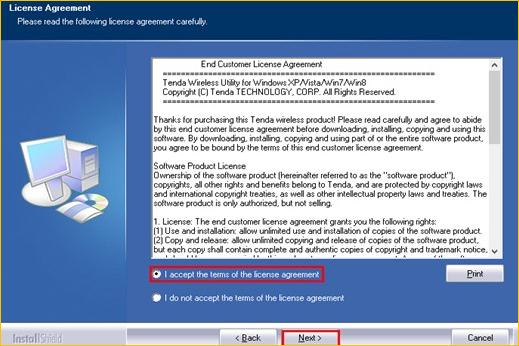
2 Select I accept the terms of the license agreement then click Next.
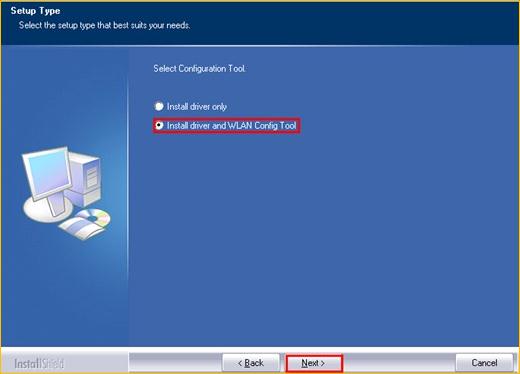
3 In this step, you can either select Install driver only or select Install driver and WLAN
Config Tool, but I recommend the second choice, because this choice will provide advanced
features like WPS. Please refer to my configuration in below picture then click Next.
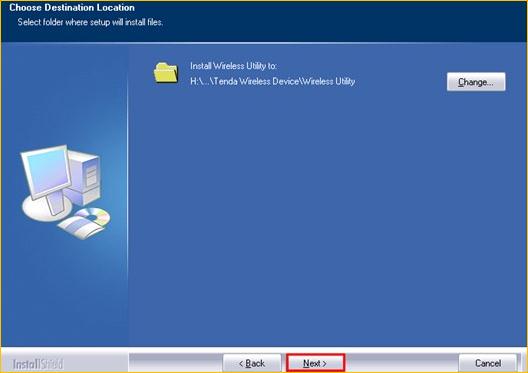
4 Click Next to continue.
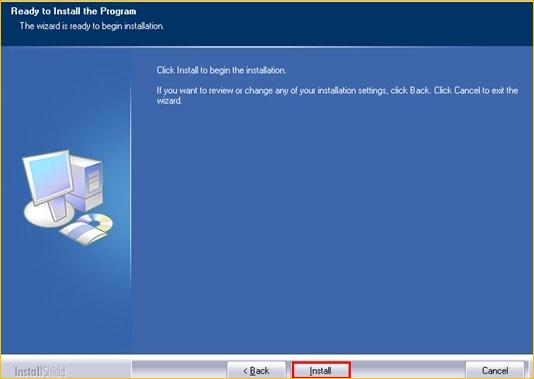
5 Click Install to continue.
6 Generally, computer will pop up Windows Security like picture below, please click Install.
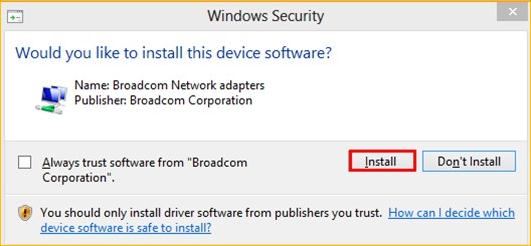
7 Now you have installed Wireless Utility successfully, but before using the program, please
click Finish to restart your computer.
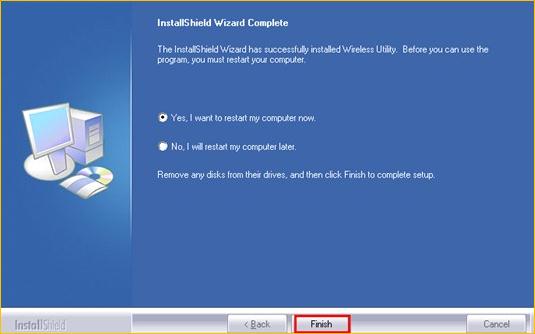
8 When you return back, you will see Wireless button in lower right corner and an icon
named Wireless Utility on the desktop.
