

Update: 2026-04-16 Preview:8868 For:Mesh Wi-Fi Systems、Wi-Fi Routers、4G Routers、5G Routers、
Why Do I Fail to Access tendawifi.com?
At times you may fail to access your router’s built-in management utility, tendawifi.com. This failure could result in an error page, or even getting no response at all, like a blank screen. There are several reasons why this may occur, and this FAQ will help address the most common.
1. Not Connected to the Router:
Make sure your client is connected to your Tenda Router’s network, via wired or wireless connection. tendawifi.com is an internal only management utility and you can only access if you are connected to the router’s network.
(If you don't connect a cable to the WAN port, you can still access the configuration page, but you won't be able to configure the router properly.)
2. You Receive an Error Message
If you received the following error message, it is likely you have cached the public IP address of tendawifi.com. You will need to clear your browser cache (cookies) and/or history. You can use the following link for instructions on how to clear this data in your favorite browser.
- Google Chrome: https://support.google.com/accounts/answer/32050
- Internet Explorer: https://support.microsoft.com/en-us/windows/view-and-delete-your-browsing-history-in-internet-explorer-098ffe52-5ac9-a449-c296-c735c32c8678
- Mozilla Firefox: https://support.mozilla.org/en-US/kb/how-clear-firefox-cache
- Apple Safari: https://support.apple.com/en-us/HT201265
Alternatively, you can also try a different browser or client devices. For example, if you normally use Google Chrome, then try Mozilla Firefox to access tendawifi.com.
3. You receive a warning “Your connection is not private”
If you received the following warning tips, please refer to this FAQ: How to Login to the Tenda Router's web management page when HTTPS is enabled to access the web page.

4. Access via the router's Gateway IP Address
The URL tendawifi.com resolves to your router's gateway IP address. If the URL is not working, you can try and use your Router’s gateway IP address instead. By default, this address can be one of the following: http://192.168.0.1 or https://192.168.1.1.
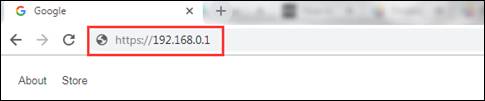
Note: 192.168.0.1 or 192.168.1.1 may not always be your router's IP address. If you're unable to access with one of these then you can refer to this video for detailed methods on
Video link: How to find your router's IP address?
5. Multiple Network Connections
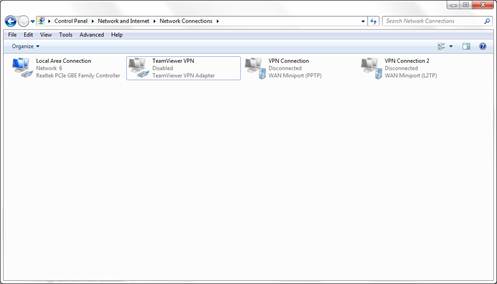
You may have multiple network connections running at the same time, such as wired, wireless or a VPN. If you do and your unable to access the management utility it is recommended to disable or disconnect all of your internet and VPN connections but your wired or wireless connection, and then try to access the management utility.
6. Power Cycle
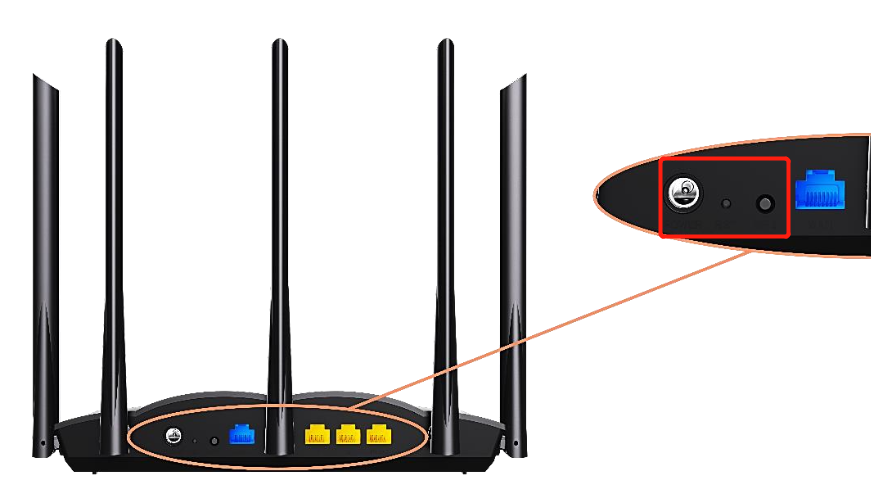
In most cases a power cycle of your router and modem can fix a lot of concerns, including issues accessing the router’s management utility. If you are having access issues try to reboot your router. You can unplug/plug the power cable or press on the power button off/on to reboot your Tenda Router.
Note: It is also recommended to reboot your end device if possible.
7. Disable the Firewall
Firewall and Antivirus software can at times block access as they may not recognize the address or may consider it as not secured. In these cases, you can temporarily disable your firewall or antivirus software.
8. When All Else Fails
If after all of these, you are still unable to access your router’s login page, you may do a factory reset to your router.
Note: A factory reset will erase all custom settings and restore the router’s factory settings and you will need to reconfigure your router when you regain access.
If even a factory reset does not help, you will need to contact Tenda support to further troubleshoot your concern.