

Update: 2026-05-08 Preview:76 For:5G03 、4G08 、5G06 、4G03 Pro V2.0、
What is associated/link speed?
Link speed (also called associated speed or connection speed) is the maximum negotiated speed between your device and the router/access point, based on hardware capabilities and signal quality.
For Wi‑Fi (802.11), real-world throughput is usually 40–60% of the link speed due to interference and network overhead.
How to Check Link Speed on Your Device
1 Windows
Quick Method
(1) Press Windows key + R to open the run box.
(2) Type ncpa.cpl and press Enter key.
(3) Double-click your active connection:
- WLAN for Wi-Fi
- Ethernet for wired
(4) Find Speed in the status window — this is your link speed

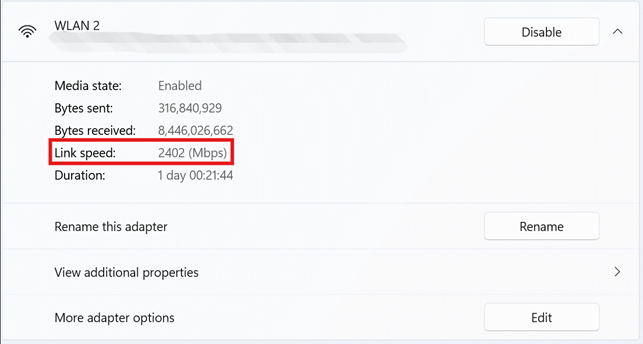
Settings Method
(1) Go to Settings > Network & devices > Advanced network settings
(2) Right click your active network adapter
(3) Find link speed — this is your connection speed.
2 Mac OS
(1) Press and hold the Option key
(2) Click the Wi-Fi icon in the top-right menu bar
(3) Look for Tx rate — this is your Wi-Fi link speed

3 Android
(1) Open Settings > WLAN
(2) Tap the Wi-Fi network you’re currently connected to
(3) Find Connection speed – this is your link speed
